

Administration
Course Builder
Assemble modules, lessons, and quizzes into the order learners move through, then associate a certificate and publish.
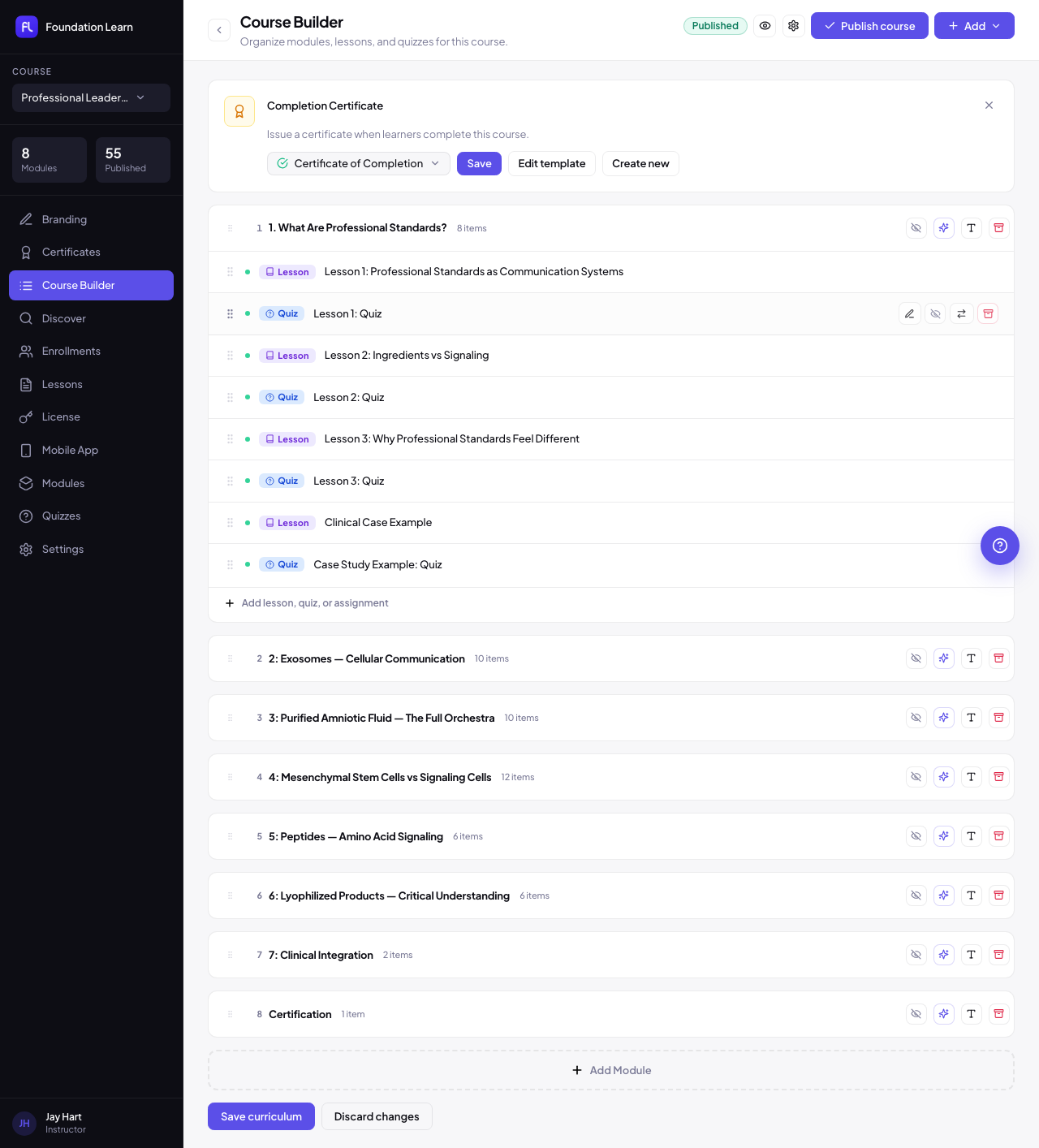
The Course Builder is a single drag-and-drop screen for assembling a course. Choose a course from the switcher, build its outline from modules and items, associate a completion certificate, then publish. The sidebar shows live counts of modules and published items so you always know the shape of the course.
Modules
Modules are the sections that chapter a course. Click Add Module to create one, rename it inline, and drag its header to reorder. Each module header shows how many items it holds. Archiving a module removes it from the curriculum without deleting the underlying content, so you can pull a section from the path and add it back later.
Lessons and quizzes
Inside a module, add a lesson or a quiz. New items open their editor so you can fill in the details, and you can also attach an existing module you built elsewhere. A colored pill labels each row as a Lesson or a Quiz, and per-item controls let you edit it, hide it, move it to another module, or archive it.
Lesson delivery
A lesson can play a video or present formatted text. Paste a YouTube link or a self-hosted file (MP4, WebM, OGG, MOV, or M4V) into the lesson's Video URL field, or leave it empty and write the lesson body in the editor. Delivery mode is Auto by default (video when a URL is present, otherwise text), and you can force Video player or Text per lesson. Attach downloadable files such as worksheets or slides on the lesson's Attachments tab.
Ordering
Drag items by their grip handle to set the sequence learners follow, and drag module headers to reorder whole sections.
Completion certificate
Choose the certificate template to issue when a learner finishes the course, or edit and create templates without leaving the builder. Leave it unset to run the course without a certificate. See Certificates for template details.
Curriculum access: sequential or open
Each course runs in one of two modes. Sequential unlocks items in order, so a learner must finish the current item before the next opens. Open makes every item available as soon as the learner is enrolled. Set the site-wide default under Settings → Curriculum access and override it per course. Unlocking is driven by completion, not by a timed drip schedule.
Saving and publishing
Structural edits are staged until you click Save curriculum; Discard changes reverts them. Publish course makes the course and its outline live for enrolled learners.